
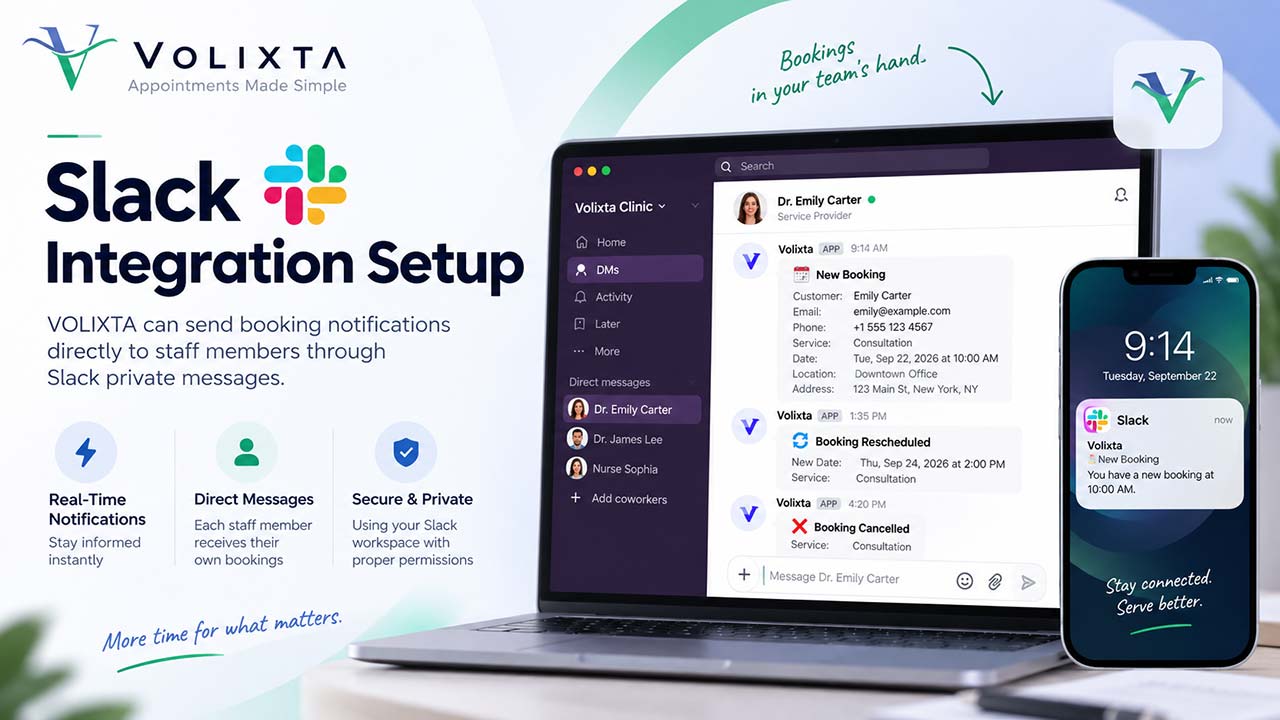
Staff can receive real-time notifications for new bookings, booking updates and cancellations, as well as booking reminders and daily booking summaries.
Notifications are delivered individually, so each staff member receives information related to their own bookings.
This guide explains how to set up the Slack integration in Volixta, configure the required Slack permissions, connect your workspace, and enable booking notifications for your staff.
1. Create a Slack App
To connect Volixta with Slack, you first need to create a Slack application in the workspace where booking notifications should be delivered.
Open the Slack App management page:
https://api.slack.com/apps
Create a new app for your workspace.
Once the app has been created, you can configure the permissions required by Volixta.
2. Add the Required Slack Permissions
In your Slack app settings, go to OAuth & Permissions.
Under Bot Token Scopes, add the following permissions:
- chat:write
- im:write
- users:read
- users:read.email
These permissions allow Volixta to identify staff members in your Slack workspace and send booking information through private messages.
What are these permissions used for?
chat:write allows Volixta to send booking messages.
im:write allows the Slack app to open direct-message conversations with staff members.
users:read allows Volixta to access the Slack user list required for staff matching.
users:read.email allows Volixta to identify Slack users by their email address.
Volixta uses these permissions only for the functionality required by the Slack integration.
3. Install the Slack App
Once the required permissions have been added, install the app in your Slack workspace.
Slack will ask you to authorize the permissions configured for the application.
After authorization, the app will become available in your workspace.
Important: If you add or change Slack permissions later, you may need to reinstall or reauthorize the app before the new permissions become active.
4. Copy the Bot User OAuth Token
After installing the application, Slack provides a Bot User OAuth Token.
The token usually starts with:
- xoxb-
Copy this token.
Then open your WordPress dashboard and navigate to the Volixta Slack integration settings.
Paste the Bot User OAuth Token into the corresponding field and save the configuration.
Volixta will verify the Slack connection and automatically detect the connected workspace.
Security: Your Slack Bot User OAuth Token should be treated as a private credential. Do not publish or share it with unauthorized users.
5. Match Volixta Staff Members with Slack
Volixta determines which Slack user should receive a booking notification by matching the staff member’s email address.
For example:
Volixta Staff Email
john@example.com
↓
Slack Account Email
john@example.com
Both email addresses must match.
If a staff member is not receiving Slack notifications, verify that the email address configured in their Volixta profile is the same email address associated with their Slack account.
This allows Volixta to deliver booking information to the correct person without requiring you to manually assign Slack user IDs.
Slack Booking Notifications
Once the integration is connected, Volixta can automatically send booking activity to the staff member assigned to the appointment.
6. New Booking Notifications
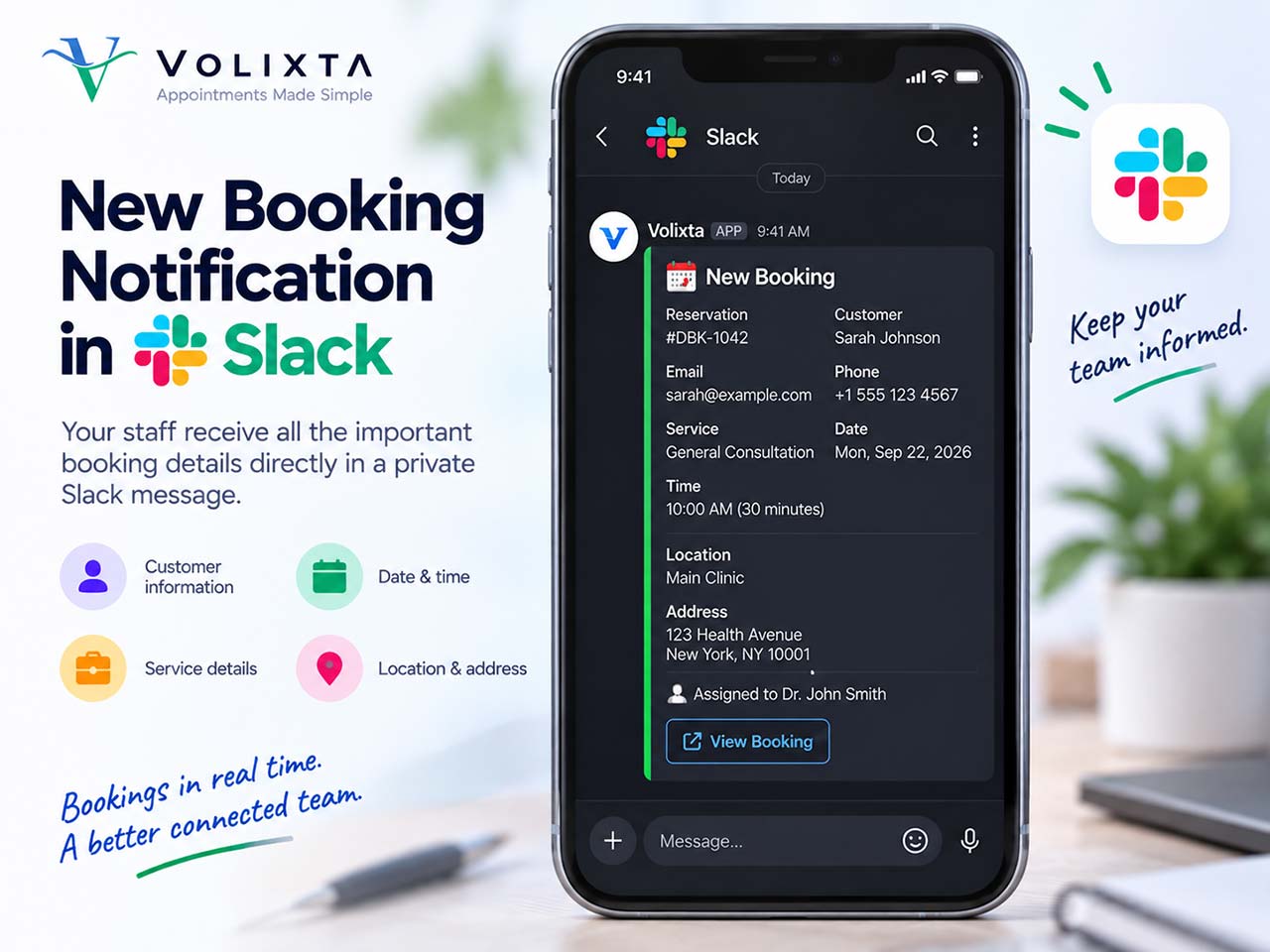
When a new booking is confirmed, the assigned staff member receives a private Slack notification.
Depending on the information available for the booking, the notification can include:
- Customer name
- Customer email
- Customer phone number
- Service
- Booking date and time
- Location
- Address
Each staff member receives notifications only for bookings assigned to them.
This means that a staff member assigned to one appointment will not receive another staff member’s booking notification.
7. Booking Updates in Slack
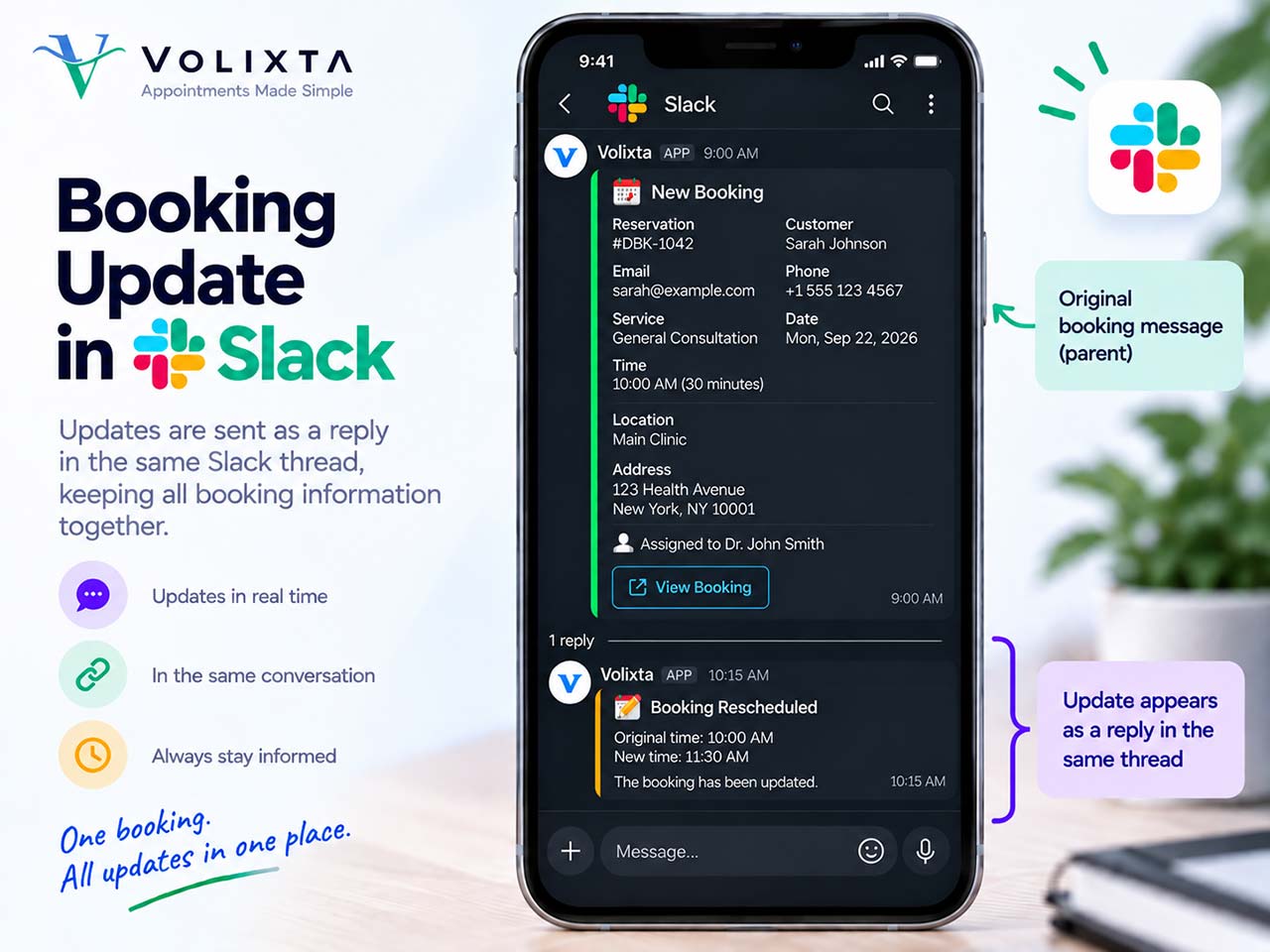
When an existing booking is rescheduled or updated, Volixta can send the updated information to Slack.
Instead of creating an unrelated message, the update is added as a reply to the original booking notification.
For example:
New Booking
│
└── Booking Rescheduled
This keeps information related to the same booking together and makes it easier for staff members to follow its history.
8. Booking Cancellations in Slack
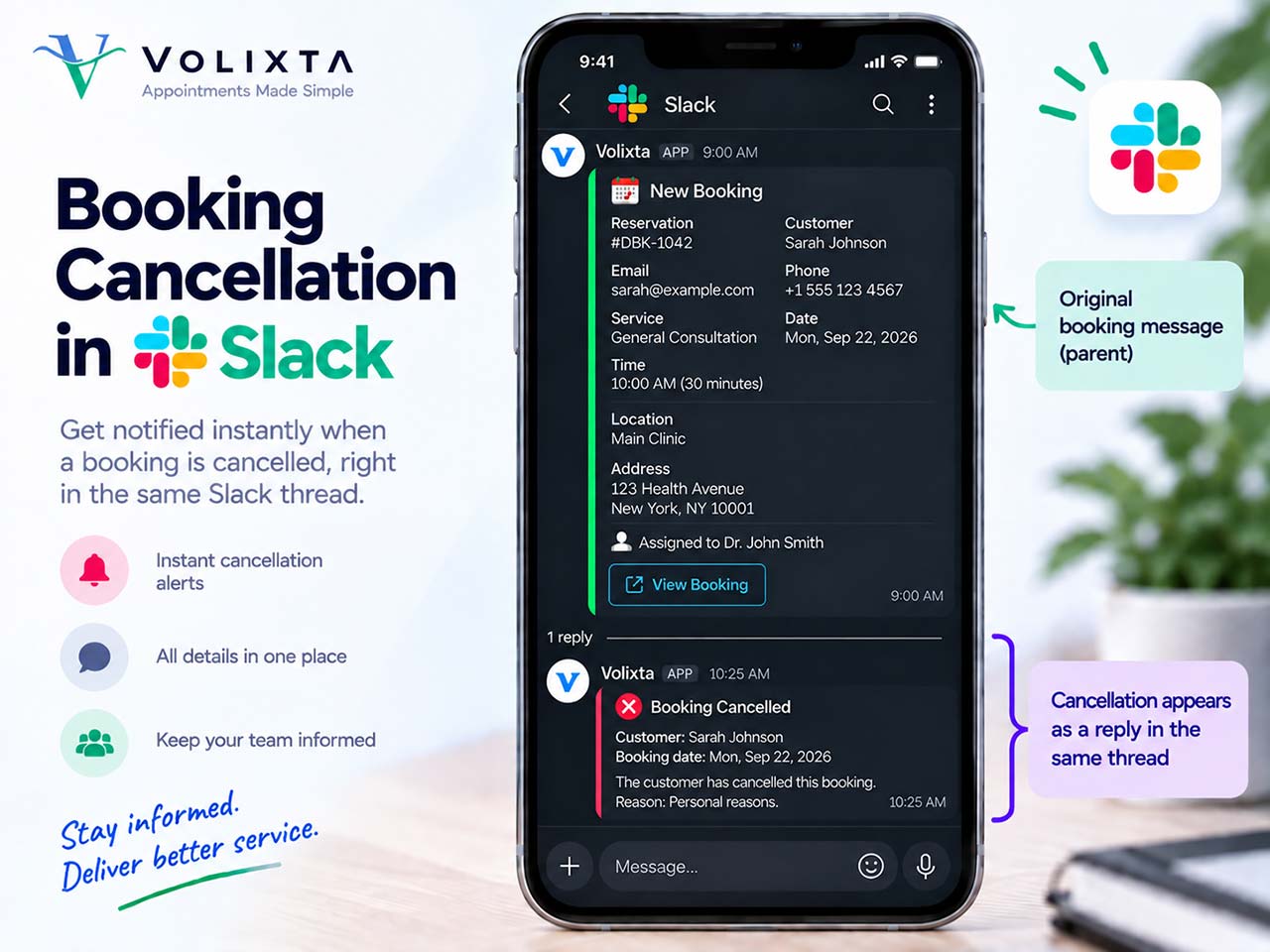
When a booking is cancelled, Volixta also sends the cancellation information to the assigned staff member.
The cancellation is attached to the existing booking conversation when the original Slack notification is available.
For example:
New Booking
│
├── Booking Rescheduled
│
└── Booking Cancelled
Staff members can therefore see the booking’s previous activity without searching through unrelated Slack messages.
Slack Booking Reminders
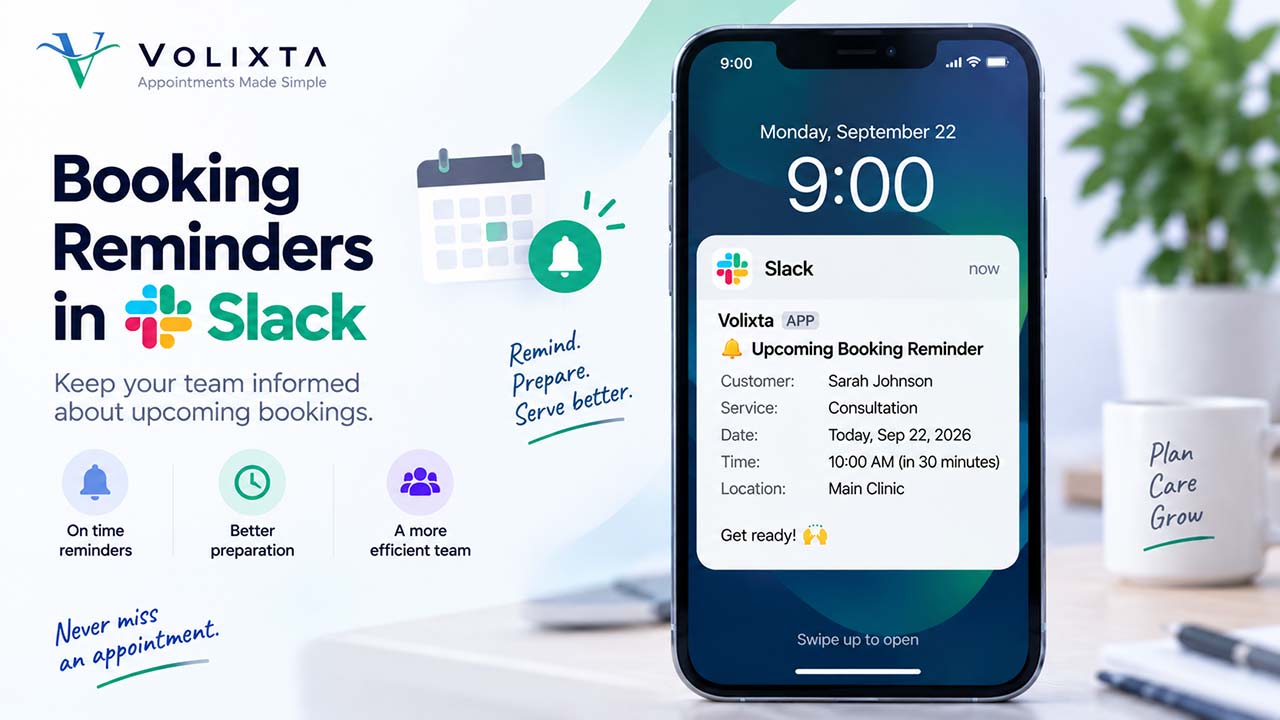
Volixta can also use Slack to remind staff members about upcoming bookings.
Booking reminders help staff stay informed about upcoming appointments directly from the communication tool they already use during their workday.
The reminder is sent to the staff member associated with the booking.
This provides an additional notification channel alongside Volixta’s other booking and notification features.
Daily Booking Summaries in Slack
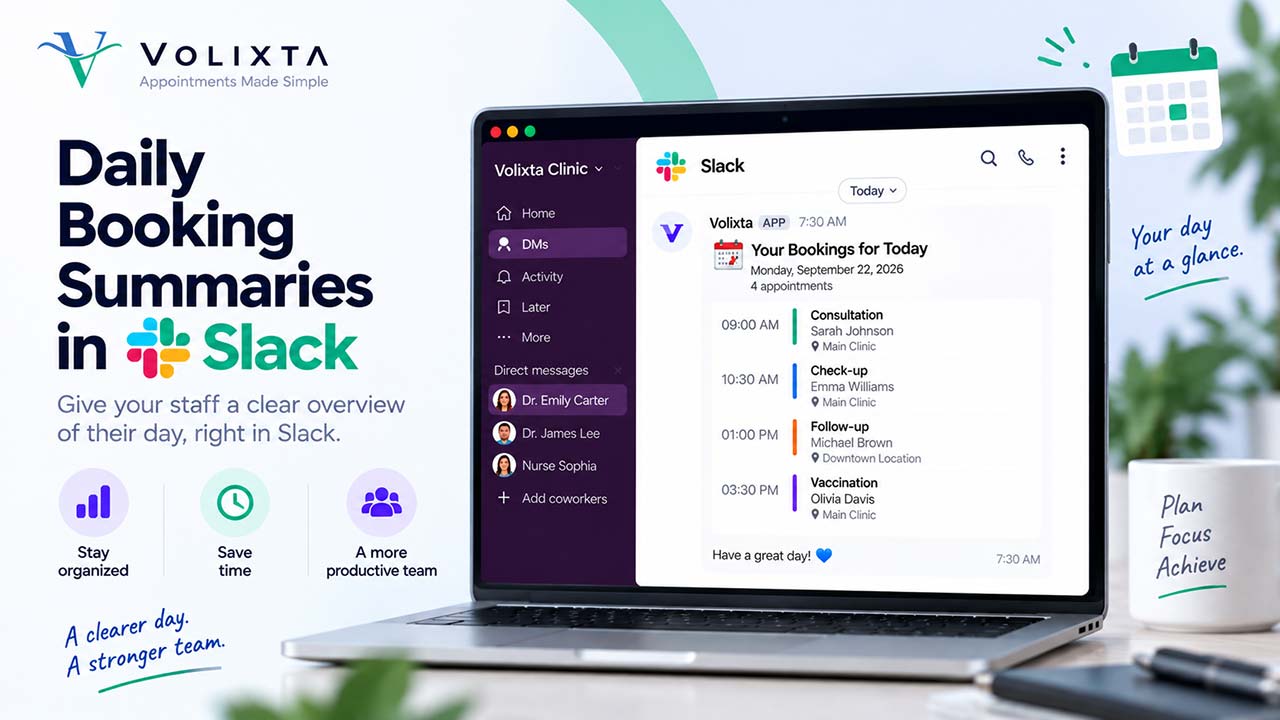
Volixta can provide staff members with a summary of their bookings for the day.
Instead of checking appointments individually, staff members can receive an overview of their daily schedule directly in Slack.
A daily booking summary can provide quick access to important information about the appointments assigned to that staff member.
This is particularly useful for staff members who manage multiple appointments throughout the day.
Privacy and Staff Notifications
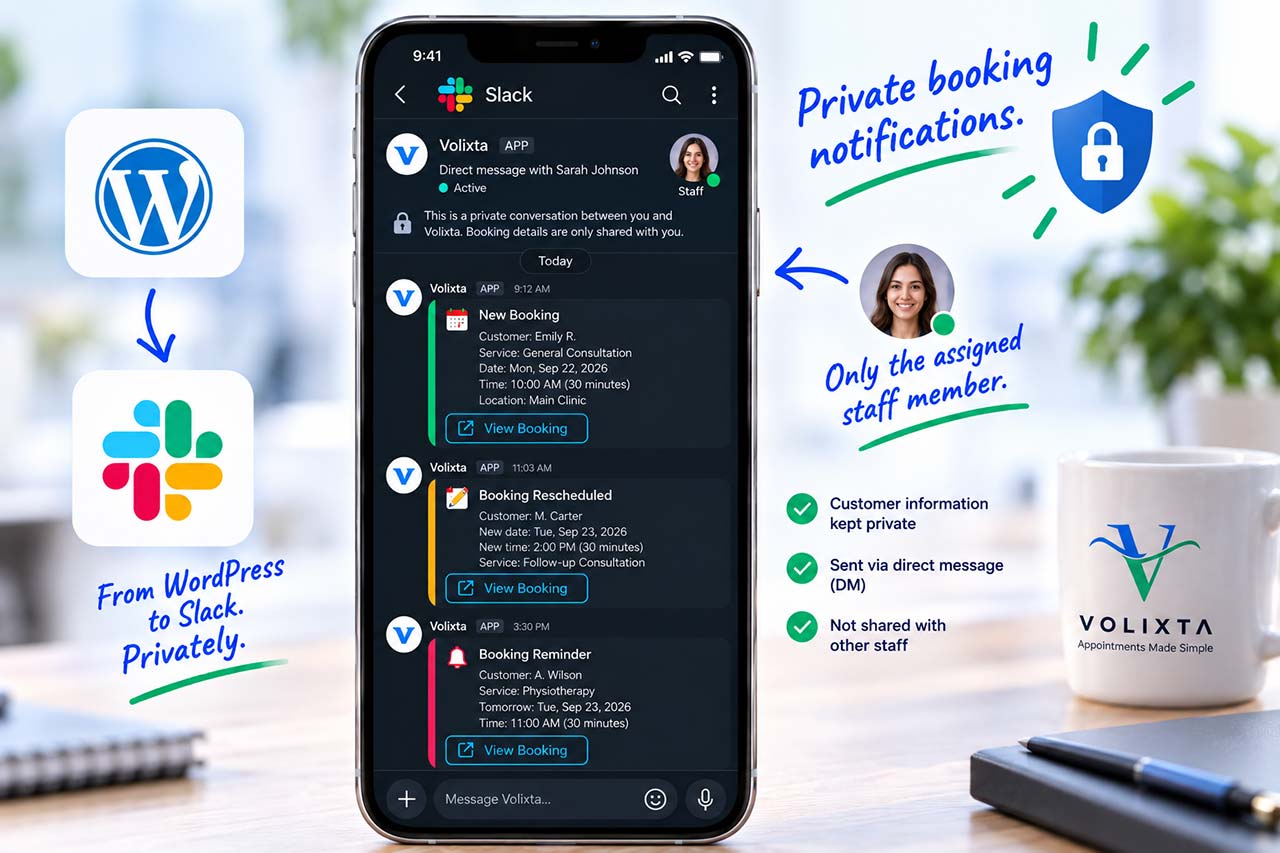
Slack booking notifications are delivered through private direct messages.
Volixta matches bookings with their assigned staff member and sends the corresponding notification to that person’s Slack account.
As a result, staff members receive Slack booking notifications related to their assigned bookings, rather than notifications intended for other staff members.
Because booking notifications may contain customer information, access to your Slack workspace and Slack accounts should be managed appropriately by your organization.
Troubleshooting the Slack Integration
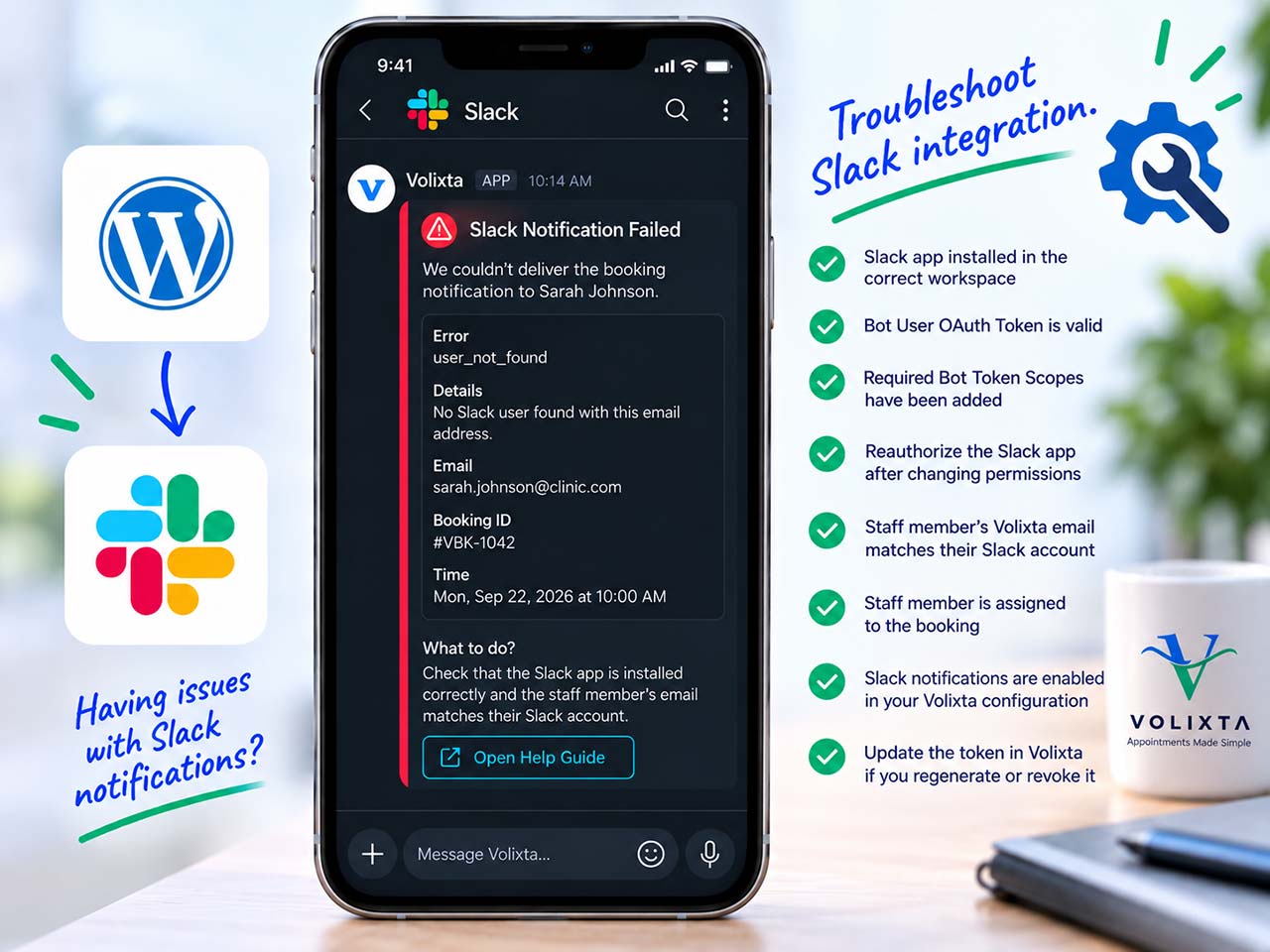
If Slack notifications are not being delivered, check the following:
- The Slack app is installed in the correct workspace.
- The Bot User OAuth Token is valid.
- The required Bot Token Scopes have been added.
- The Slack app was reauthorized after changing permissions.
- The staff member’s Volixta email matches their Slack account email.
- The staff member is assigned to the booking.
- Slack notifications are enabled in your Volixta configuration.
If you regenerate or revoke the Slack Bot User OAuth Token, remember to update the token in Volixta.
Slack Integration Setup Complete
Once your Slack workspace is connected and your staff members are correctly matched, Volixta can deliver booking activity directly to the appropriate staff members in Slack.
Your team can receive new booking notifications, booking updates, cancellations, reminders, and daily summaries while continuing to manage appointments through Volixta.